MethodicConfigurator
Flight-Controller Firmware Upload
Purpose
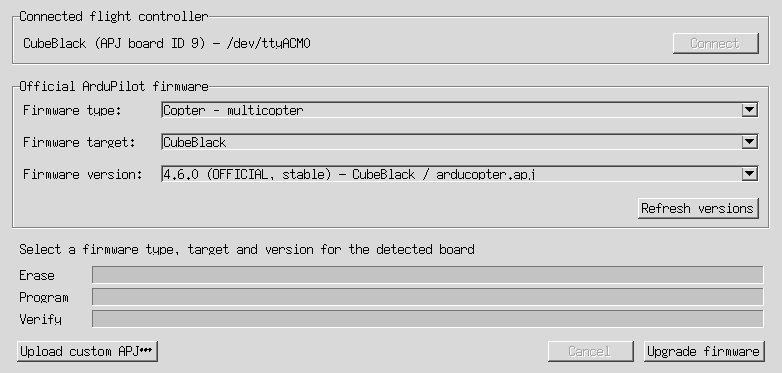
The Upload ArduPilot firmware window installs ArduPilot firmware on a connected flight
controller. You can choose a release from the official ArduPilot catalog or upload a local .apj
file.
Firmware is the software that runs on the flight controller. Uploading replaces the installed firmware, temporarily disconnects the controller, and restarts it after checking the uploaded image. This is a separate operation from uploading vehicle parameters.
The window detects the connected board and offers firmware builds with a matching APJ board ID. You still need to choose the firmware type and target appropriate for your vehicle and hardware.
The screenshots show an example CubeBlack board and sample release data. The available versions, targets, and serial port on your computer may differ.
Before You Start
- Disarm the vehicle and remove its propellers or otherwise make its actuators safe.
- Back up the flight-controller parameters. Use the parameter export guide to preserve the settings and calibration of this specific vehicle.
- Connect the flight controller directly to your computer by USB, using a reliable data cable.
- Keep the controller powered and the USB cable connected throughout the upload.
- Close other applications that may be using the controller’s serial port.
- Make sure you have internet access if you plan to use the official firmware catalog.
Firmware upload requires a working connection to the running flight controller and an identifiable USB serial device. Network connections, including UDP and TCP connections or telemetry forwarding, cannot be used for firmware upload.
Opening the Window
In the vehicle project opener, click Upload ArduPilot firmware. The project opener remains visible but inactive until you close the firmware upload window. The upload window shares the application’s flight-controller connection. Closing without attempting an upload, or after cancelling safely before erase, returns to project selection without exiting AMC, provided no restart requirement was recorded. If you connect a controller with Connect in this window, or a detected controller is unplugged while the window is idle, AMC records a restart requirement. Reconnecting the controller or safely cancelling a later upload does not clear it; closing the firmware window then shows a notice and exits AMC. After a successful or failed upload, closing the firmware window also exits AMC. Restart AMC before continuing configuration.
With AMC installed in your Python environment, start the standalone tool from a terminal:
amc_firmware_upload
You can also start it from the repository with its Python environment activated:
python -m ardupilot_methodic_configurator.frontend_tkinter_firmware_upload
Startup attempts to connect automatically. If no auto-detected ports respond and you did not
specify --device, the connection selector lets you choose a flight controller. A failed explicit
--device connection or another connection error displays an error and exits. Cancelling the
startup selector exits the tool.
To specify a serial port, use --device. For example, on Linux:
amc_firmware_upload --device /dev/ttyACM0
On Windows, replace the device with your controller’s port, such as COM3.
Use amc_firmware_upload --help to see the available connection options, including --baudrate
and --reboot-time.
Connected Flight Controller
The Connected flight controller area shows the detected board model, its APJ board ID, and the serial device used for the connection. Check these details before selecting firmware.
If no flight controller is connected, click Connect. The connection selector opens as a child window; choose the controller’s USB connection or click Auto-connect. Closing this selector returns to the firmware window.
If you unplug the USB cable while no upload is running, AMC checks for the missing serial port once per second, clears the disconnected board’s firmware choices, enables Connect again, and records a restart requirement. Plug the controller back in and click Connect to reconnect if you want to continue working in the firmware window. The restart requirement remains even after reconnecting, so closing that window exits AMC. These checks are suspended during upload because the bootloader intentionally changes the USB connection.
The firmware selectors and upload actions are unavailable until the controller’s board ID is known. Once the board is detected, AMC loads the official firmware catalog.
Choosing Official Firmware
The Official ArduPilot firmware area has three selectors. Choose them in order.
Firmware Type
Choose the software for your vehicle. The choices depend on what the catalog offers for the connected board.
- Copter - multicopter is for multicopters.
- Copter - heli is for traditional helicopters.
- Plane, Rover, and Sub are offered when matching builds are available.
AMC initially selects the connected controller’s vehicle type when it appears in the catalog. Check this choice, especially when changing the vehicle type or switching between multicopter and helicopter firmware.
Firmware Target
A target is a firmware build for a particular board model or variant. Only targets with the connected controller’s APJ board ID are listed.
AMC selects the detected board name when it matches an available target. If it does not match, AMC selects a target automatically only when there is a single target. When several targets are available and none matches the detected name, no target is preselected; choose the build intended for your exact hardware. A matching board ID alone does not choose the right board variant for you.
Firmware Version
Choose the release to install. Each entry includes its version, release channel, release directory, target, and APJ filename so that builds can be distinguished.
- OFFICIAL identifies a stable release.
- BETA identifies a release being tested.
- DEV identifies a development build.
For normal vehicle use, choose a suitable stable release. Select testing or development firmware deliberately when you need that build and can validate it before flying or operating the vehicle.
The version selector starts empty, even when only one version is listed. You must select a version before Upload firmware becomes available. Changing the firmware type or target clears the version selection, so select a version again after either change.
Refreshing the Catalog
Click Refresh versions to download the catalog again. This requires internet access and clears the previous version selection when the new list is displayed.
The list contains compatible APJ entries from the official catalog, rather than every historical ArduPilot build. Older releases that lack the firmware identity needed for verification are excluded.
Installing an Official Release
- Check the connected board, firmware type, target, and version.
- Click Upload firmware.
- Review the first confirmation and accept it to download the selected release and prepare the controller for flashing.
- Wait while AMC downloads and inspects the APJ, enters the controller’s bootloader, and checks the board and available flash capacity.
- Review the Confirm firmware flash dialog. It identifies the selected release, the Bootloader board ID, and the APJ SHA-256 digest of the file being uploaded.
- Accept the final confirmation to erase the existing firmware and write the selected image.
- Keep power and USB connected while AMC erases, programs, verifies, restarts, and reconnects to the controller.
- Wait for Firmware upload completed and flight controller reconnected before considering the operation successful.
The SHA-256 digest identifies the exact APJ file being flashed. Board and image checks happen before erasing begins. Declining the final confirmation stops the upload before erasing the installed firmware.
Uploading a Local APJ File
Use Upload custom APJ… when you already have the firmware file on your computer, such as a custom build prepared for your board.
- Check the detected controller and click Upload custom APJ….
- Select the
.apjfile in the file dialog. - Review and accept the confirmation identifying the local file and connected board ID.
- Wait for AMC to inspect the file and identify the bootloader.
- Review and accept Confirm firmware flash to begin erasing and flashing.
- Wait for verification, restart, and successful reconnection.
The local file uses the same board compatibility checks, final confirmation, and progress display as an official release. Its APJ board ID must match the connected controller. Compatibility is checked from the file’s contents, not from its filename.
Only APJ firmware files are supported. Raw .bin firmware images cannot be uploaded through this
window. The original local APJ file is not changed by the upload.
A local upload does not need an official version selected and does not download the firmware file. The window still attempts to load the official catalog after connecting; if that download fails, the custom APJ action remains available while the controller is connected.
Progress and Cancellation
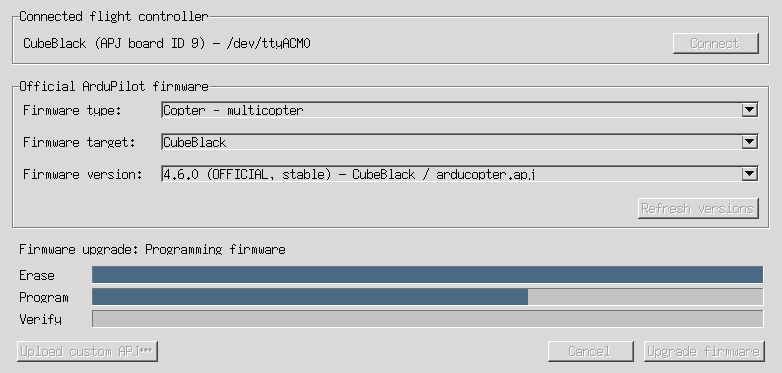
The status message describes the current operation. Three bars show the flashing stages:
- Erase: removing the old firmware from internal and, when used, external flash.
- Program: writing the selected firmware image.
- Verify: checking that the written image matches the firmware file before restarting.
When the bootloader reports intermediate progress, the bars show measured completion. For erase or verification operations that provide no intermediate measurements, the corresponding bar animates until that operation finishes. An animated bar is an activity indicator, not a percentage or an estimate of remaining time.
The controller temporarily leaves its normal connection while it runs the bootloader. Its USB serial port may change during this process; AMC uses the USB device identity to find it again.
Cancel is available while preparing the upload, before erasing starts. Cancellation takes effect at a safe point, so it may not be immediate. Once erasing begins, Cancel is disabled. The window also refuses to close while an upload operation is running. Keep the cable connected and wait for the result. After safe cancellation, closing the window returns to AMC without a restart if no restart requirement was already recorded, such as by connecting a controller with Connect or unplugging a detected controller while idle. If cancellation recovery fails, AMC reports an upload failure instead; closing the window then exits AMC so you can restart and reconnect.
After the Upload
- Confirm that AMC reports successful completion and reconnection.
- Close the upload window. If you opened it from the project opener, this exits AMC after either a successful or failed upload. Restart AMC to reconnect and load the current firmware, parameters, and defaults through normal startup. There is no automatic post-upload refresh in the existing session. For the standalone tool, close it and start AMC before continuing configuration.
- Check the installed firmware and review the vehicle configuration, calibration, and pre-arm checks before operating the vehicle.
- Review your backup before restoring any values, especially after changing firmware version or vehicle type.
A completed progress bar alone does not indicate success. Verification and reconnection must also succeed. Do not assume that settings appropriate for the previous firmware are appropriate for the newly installed version. Cancelling a later retry does not remove the restart requirement from an earlier successful or failed upload in the same window.
Troubleshooting
No Controller or Board ID Detected
Check the USB cable, power, and selected serial port. Close other programs using that port and retry the connection. Uploading requires a connection to the running flight controller; this window is not a bootloader-only recovery tool for a board that cannot start ArduPilot.
Catalog Download Failed or No Firmware Listed
Check internet access and click Refresh versions. If AMC reports No APJ firmware is listed for this board ID, the catalog has no usable entries for the detected board. A matching local APJ can still be selected with Upload custom APJ….
Firmware or Board Compatibility Error
Check that the firmware is intended for your exact board and fits its flash capacity. Choose the correct target or obtain a matching APJ file. There is no force-flash option to bypass these checks.
Upload Failed During Erase, Programming, or Verification
Read the reported error. The firmware may be incomplete if erasing has started. Follow the recovery instruction to power-cycle the controller before reconnecting. If ArduPilot no longer starts, use a bootloader recovery procedure appropriate for your board.
Firmware Written but Reconnection Failed
A reconnection error is not reported as a successful upload. Check power and USB, follow the error’s recovery instructions, and reconnect. Verify the running firmware before continuing configuration or vehicle operation.
Important Limitations
- A direct USB serial connection and a valid connected board identity are required.
- Official release selection and downloading require internet access.
- Only compatible APJ images are supported; network uploads, force flashing, and full-chip erase are unavailable.
- Selecting firmware does not start flashing. Preparing the upload and erasing the controller each require confirmation.
- Uploading interrupts the flight-controller connection and must not be performed on an operating vehicle.
- Cancellation cannot interrupt erase, programming, or verification once erasing begins.