MethodicConfigurator
Flight-Controller Parameter Export
Purpose
The Export parameters window saves a selection of the values currently stored on your
ArduPilot flight controller to a .param file.
This is useful for creating a backup, reviewing how a vehicle is configured, sharing reusable settings, or diagnosing unusual values. Exporting does not upload anything and does not change the flight controller.
The export uses the live values read from the connected flight controller. It does not export the values staged in the currently selected AMC parameter file.
Before You Start
- Connect and power your flight controller.
- Start ArduPilot Methodic Configurator and open the vehicle project.
- Wait for the flight-controller parameters to finish downloading.
- Open the Parameter Editor.
- Click Export parameters in the parameter action buttons.
The export button is unavailable when no flight controller is connected or when its parameters have not been downloaded.
The standalone parameter tools require internet access during startup to download parameter metadata for the connected firmware.
Choosing Parameters
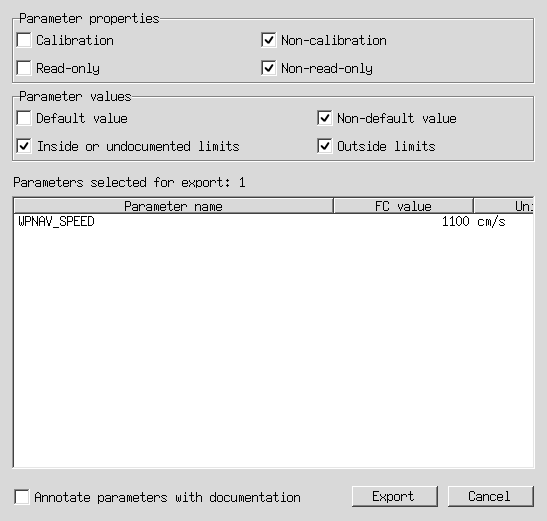
The window has two groups of selectors. A parameter must match every selected group, so the filters use AND logic.
- Selecting both options in a row removes that row as a restriction.
- Clearing both options in a row selects no parameters for that row.
- The number beside Parameters selected for export updates as you change the selectors.
- The preview below the count lists each matching parameter, its current FC value, and its Units.
- Hover over a parameter name or value to view its ArduPilot documentation when available.
- Click a column heading once to sort ascending; click it again to sort descending. The table rows scroll independently of the headings.
Parameter Properties
These selectors describe what a parameter is.
Calibration
Calibration parameters contain corrections learned for the sensors on one particular flight controller, such as accelerometer, gyroscope, or compass calibration. They are dependent on the physical board, sensor, installation, and vehicle.
Do not copy calibration parameters to another flight controller. A different board needs its own calibration. Include them when you are making a backup of this exact vehicle, or when you need to diagnose or restore its calibration. Leave Calibration unchecked when creating settings to reuse on another vehicle.
Non-calibration
These parameters are not sensor calibration values. They usually describe how ArduPilot should operate, such as vehicle setup, communication, safety, or tuning choices. They are generally more appropriate for reuse on another vehicle with compatible hardware and firmware, but you should still review them before applying them.
Read-only
Read-only parameters are reported by ArduPilot for information, status, or detected hardware. ArduPilot normally does not allow them to be changed. They can be useful in a complete backup or for diagnosing hardware, but they are usually not useful in a reusable configuration file.
Non-read-only
These are parameters that ArduPilot normally allows you to configure. They are usually the most useful parameters when creating a configuration file for review or reuse.
Parameter Values
These selectors describe the current value stored on the flight controller.
Default value
The current value is the default supplied by the installed ArduPilot firmware. No custom value has been applied for that parameter.
Default values can make a complete backup easier to understand, but they are often unnecessary when sharing only the settings that were intentionally changed.
Non-default value
The current value differs from the firmware default. It represents a setting that was customized, changed during setup, or changed during operation.
This is commonly the useful choice when exporting the configuration decisions made for a vehicle.
Inside or undocumented limits
The current value is not known to violate a documented ArduPilot limit. Parameters with no documented minimum or maximum are included because they are not known to be outside a limit. If only one bound is documented, only that bound is checked.
This does not guarantee that the value is appropriate for your vehicle, and it does not mean that an undocumented parameter has a known safe range.
Outside limits
The current value is below the documented minimum or above the documented maximum. Such a value may be invalid or unsafe, but it can be important when diagnosing a configuration problem or recovering a vehicle.
Select Outside limits deliberately when you want to find or preserve unusual values.
Default Selection
The window starts with these choices:
- Non-calibration
- Non-read-only
- Non-default value
- Inside or undocumented limits and Outside limits
This selects changed, writable, non-calibration parameters while allowing both normal and unusual values to be counted. You can select both limit options because the default goal is to avoid hiding an out-of-range value from a backup or review.
Documentation Comments
Enable Annotate parameters with documentation to add human-readable ArduPilot documentation comments to the exported file.
Annotation makes a file easier to read in a text editor, but it makes the file larger and does not change any parameter value. Leave it disabled when you want a compact file for comparison or use by another tool.
Saving the File
Press Export to open the save dialog. AMC suggests a filename made from the vehicle type and
the categories selected in the window. The file always uses the .param extension.
For example:
ArduCopter_calibrations_read-only_default-values_inside-or-undocumented-limits.param
Rover_non-calibrations_non-read-only_non-default-values_outside-limits.param
ArduPlane.param
A category appears in the suggested name only when exactly one option in its row is selected. If both options are selected, that category is omitted because it does not restrict the export.
The suggested filename is only a convenience. You may choose another filename and location in the save dialog.
Use Cases
Back Up One Specific Vehicle
Use this when you want a snapshot that can restore the same physical vehicle.
- Leave calibration parameters selected if you want the backup to include sensor calibration.
- Select read-only parameters if you want a more complete diagnostic snapshot.
- Select both default and non-default values for a complete parameter backup.
- Select both inside-limit and outside-limit values so unusual values are not hidden.
- Enable documentation annotation if the backup will be inspected in a text editor.
- Export the file to a clearly named backup directory.
Do not use this complete backup as a generic configuration for another flight controller. It may contain calibration and hardware-specific values.
Share Reusable Vehicle Settings
Use this when preparing settings for another vehicle with compatible hardware and firmware.
- Select Non-calibration.
- Select Non-read-only.
- Select Non-default value.
- Select Inside or undocumented limits.
- Review the resulting file and remove settings that are specific to the destination vehicle, such as identifiers, radio setup, or component connections.
- Apply and validate the settings on the destination vehicle using the normal ArduPilot workflow.
Even non-calibration settings are not automatically safe for every vehicle. Hardware, firmware, and vehicle setup must be compatible.
Find Unusual or Invalid Values
Use this when troubleshooting a vehicle or reviewing a configuration after an unexpected event.
- Select Outside limits and clear Inside or undocumented limits.
- Select both calibration and non-calibration if you want to inspect every parameter type.
- Select both read-only and non-read-only if status parameters may help with diagnosis.
- Select both default and non-default if you want a complete diagnostic set.
- Export the file and compare the unusual values with the ArduPilot parameter documentation.
An outside-limit value is a finding to investigate, not a value that should automatically be copied back to a flight controller.
Export Only Intentional Changes
Use this when you want a compact file containing the settings that differ from firmware defaults.
- Select Non-calibration and Non-read-only.
- Select Non-default value.
- Select Inside or undocumented limits.
- Leave documentation annotation disabled for a compact file, or enable it if the file will be reviewed by someone unfamiliar with ArduPilot.
Important Limitations
- The flight controller must be connected and its parameters must be downloaded.
- Exporting does not upload, reset, reboot, or otherwise change the flight controller.
- Exporting does not change the active AMC configuration step or its parameter files.
- The current export is a Mission Planner-style
.paramfile. MAVProxy and QGroundControl-specific output formats are not currently available. - The export window does not prevent you from selecting calibration or outside-limit values. Review those selections carefully before sharing or applying an exported file.