MethodicConfigurator
Skybrush Log Analyzer User Manual
The Skybrush Log Analysis window sends an ArduPilot .bin flight log to the
Skybrush log analysis service and shows the results inside
ArduPilot Methodic Configurator (AMC). The service runs a set of automated checks
on the log and reports the result of each one, which helps you spot problems such
as high vibration levels before the next flight.
The analysis runs on the Skybrush servers. Using it requires an internet connection and a Skybrush Account, and the selected log file is uploaded to the Skybrush service.
Open the window
In the Parameter Editor, click Analyse log with Skybrush and select a .bin
flight log. The Skybrush Log Analysis window opens for that log. The selected
log name is shown at the top of the window.
Log in
The first time you open the window, it asks for a Skybrush API key.
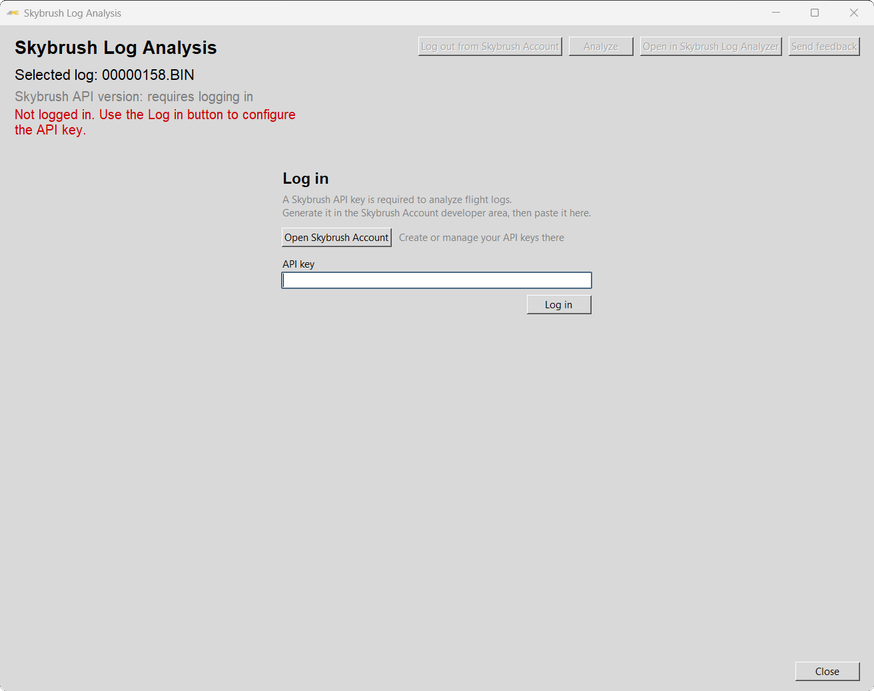
- Click Open Skybrush Account to open the Skybrush Account website in your web browser.
- Create an API key in the developer area of your account and copy it.
- Paste the key into the API key field and click Log in.
AMC checks the key and stores it, so you stay logged in the next time you open the window. Click Log out from Skybrush Account to remove the stored key.
Analyze a log
Click Analyze to upload the selected log and run the analysis. This can take a while for large logs.
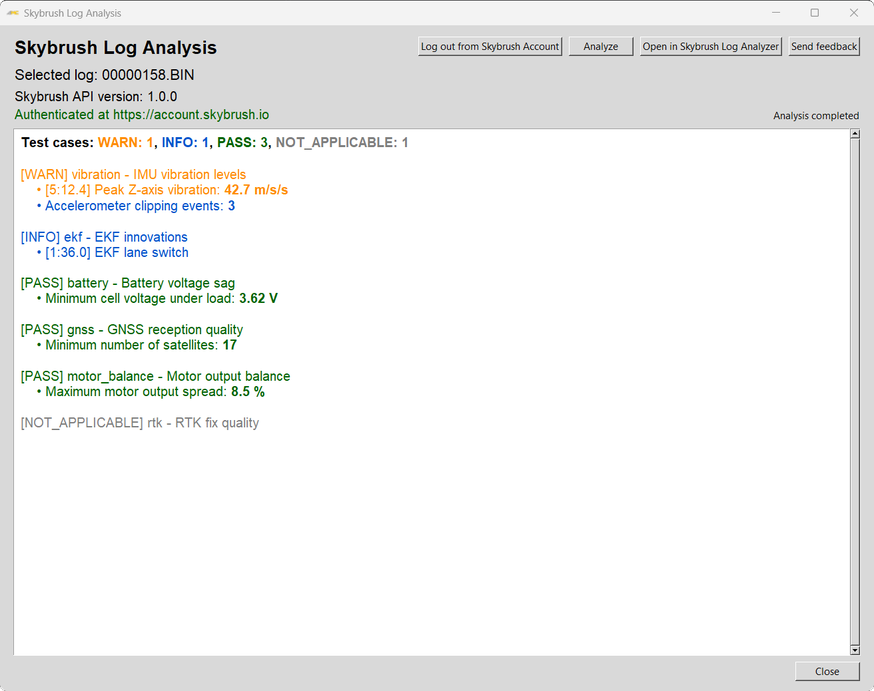
The screenshot uses illustrative results. The checks and values depend on the analyzed log.
The results start with a summary of how many checks ended with each status, followed by one entry per check, the most severe ones first. Each entry can list messages with measured values and, where available, the time in the flight when they occurred. The colors show the status:
| Status | Meaning |
|---|---|
| FAIL | The check found a problem that should be fixed. |
| WARN | The check found something that should be reviewed. |
| INFO | Informational result. |
| PASS | The check passed. |
| SKIP / NOT_APPLICABLE | The check did not run, or does not apply to this log. |
Press Ctrl+F to search the results. Use Enter or F3 to go to the next match, Shift+Enter or Shift+F3 to go to the previous one, and Esc to close the search bar.
Open the analysis in the web application
Click Open in Skybrush Log Analyzer to open the analysis of the selected log in the native Skybrush Log Analyzer web application, already logged in. The web application offers more detailed views of the analysis than the AMC window and provides additional services related to log analysis.
Send feedback
Click Send feedback to report a suspicious result, suggest a new check, or send any other feedback directly to the Skybrush team.
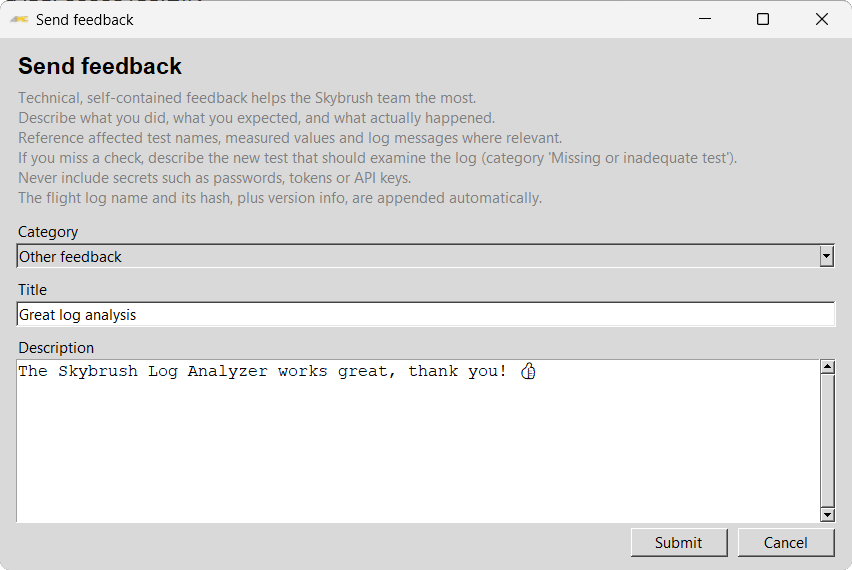
Choose a Category, enter a Title and a Description, and click Submit. The flight log name, its hash, and version information are added to your message automatically. Do not include passwords, tokens, or API keys.
Close the window
Click Close to return to the Parameter Editor.