MethodicConfigurator
Flight Controller Banner User Manual
The Flight Controller Banner window shows startup messages and recent status messages received from the connected flight controller. It also lists detected hardware devices derived from the controller’s parameters. This information can help identify the firmware build, understand startup or pre-arm messages, and check which sensors the controller reports.
Open the FC banner
In the Parameter Editor, click the FC banner button. The window is available while AMC is connected to a flight controller.
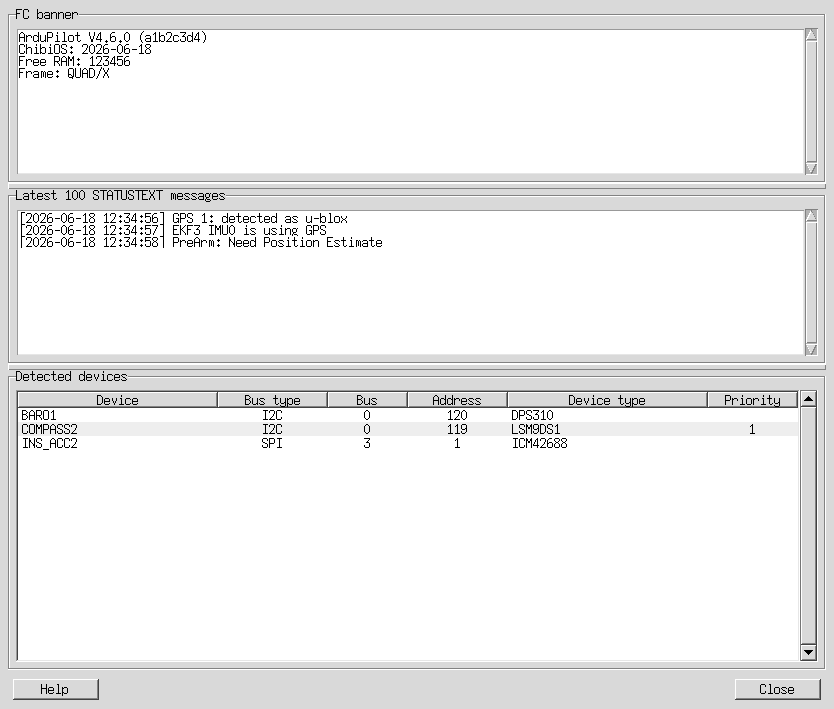
The screenshot uses illustrative values. Messages and detected devices depend on the connected flight controller.
FC banner
The FC banner section contains startup text reported by the flight controller. It commonly includes the ArduPilot firmware version and build information, board or frame details, and memory information. The text is read-only. If no banner text was captured, the window displays a notice in this section.
Latest STATUSTEXT messages
The Latest 100 STATUSTEXT messages section shows recent messages received from the flight controller, including messages buffered before this window opened. New messages appear automatically. Arrival times are included when available. Startup messages that are already shown in the banner are omitted from this list to reduce duplication.
Messages can include normal status updates, warnings, and pre-arm checks. A pre-arm message describes a condition that must be resolved before arming; it does not necessarily indicate a hardware or connection failure.
Detected devices
The Detected devices table lists sensors and other devices identified from the flight controller’s device ID parameters.
| Column | Meaning |
|---|---|
| Device | Parameter instance associated with the device. |
| Bus type | Type of bus used to connect the device. |
| Bus | Bus number reported by the device ID. |
| Address | Device address on the bus. |
| Device type | Decoded device model or type. |
| Priority | Configured compass priority, when available. |
Click a column heading to sort the table. Click the same heading again to reverse the sort order. Hover over a cell in the Device column to see the source parameter and raw device ID used to decode it. If a device ID is missing or cannot be recognized, it is not shown as a detected device.
Help and closing the window
Click Help to open this manual in your default web browser. Click Close to return to the Parameter Editor.