MethodicConfigurator
MAVFTP File Browser User Manual
The MAVFTP File Browser lets you browse and manage files on a connected ArduPilot flight controller and on your PC in one window. It is intended for flight logs, but it can also manage other files and directories exposed by the flight controller’s MAVFTP service.
Contents
- Before you start
- Open the file browser
- Window overview
- Browse and sort files
- Create, rename, and delete entries
- Copy files and directories
- Modification dates
- Keyboard shortcuts
- Troubleshooting
Before you start
- Connect and power the flight controller.
- Wait for it to boot completely before connecting.
- MAVFTP must be supported by the flight controller firmware.
- Use a reliable link for large log transfers; USB is normally preferable to a slow telemetry link.
The browser starts in /APM/LOGS/. If that directory is unavailable, it
automatically tries /APM/ and then /.
Open the file browser
From the Parameter Editor, select Download .bin log file(s).
For standalone use, run the following command from the project root. The standalone mode connects to the flight controller before opening the browser, so ensure that the selected or auto-detected device is available.
python .\ardupilot_methodic_configurator\frontend_tkinter_file_browser.py
Window overview
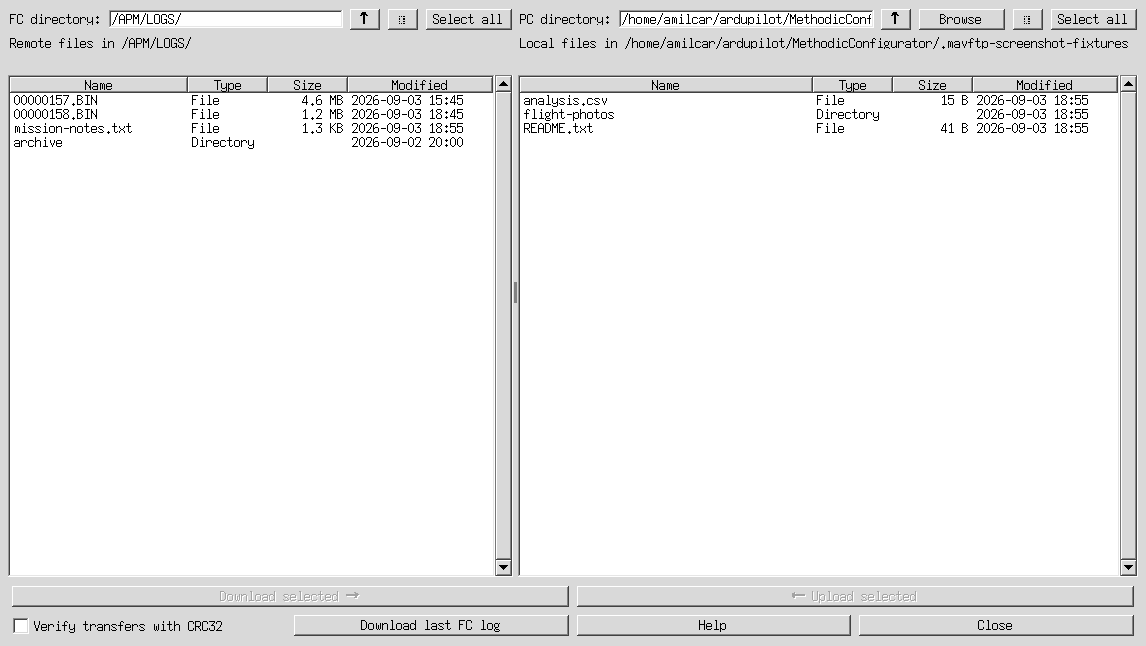
Example browser window. The files and dates shown are illustrative.
The window has two panels:
- Left — FC directory: files and directories on the flight controller.
- Right — PC directory: files and directories on your computer.
Both panels contain:
- a directory field;
- ↑ to go to the parent directory;
- ⟳ to refresh the current directory;
- Select all to select all normal entries; and
- a table with Name, Type, Size, and Modified columns.
The PC panel also includes Browse, which opens a folder picker.
Right-click an entry in the PC panel to open its context menu. Choose Open to open a selected local file with the operating system’s default application. You can also double-click a local file to open it directly. The Open action is available for one selected file; it is disabled for directories, multiple selections, and when nothing is selected.
For one selected local .bin flight log, the same menu offers plotbeta,
plot, hardware report, MagFit, Filter Review, PID Review,
Stream stats, and System ID. Selecting a tool opens its ArduPilot
website in an automation-controlled Chrome browser tab and loads the log into
the website’s file chooser. A Chrome installation and Internet access may be
required; Selenium Manager may need to obtain a matching browser driver on the
first use. Later selections open new tabs in the same managed browser. The log
remains on your computer unless the website itself transfers it; check each
tool’s privacy policy before sharing sensitive logs. The flight controller is
not involved, so download a log to the PC panel first.
At the bottom of the window:
- Verify transfers with CRC32 compares each completed transfer with the corresponding file on the flight controller.
- Download last FC log downloads the latest flight log using the flight controller’s log mechanism.
- Download selected → copies selected flight-controller entries to the currently displayed PC directory.
- ← Upload selected copies selected PC entries to the currently displayed flight-controller directory.
- Help opens this MAVFTP file-browser manual.
- Close closes the browser when no remote operation is in progress.
Browse and sort files
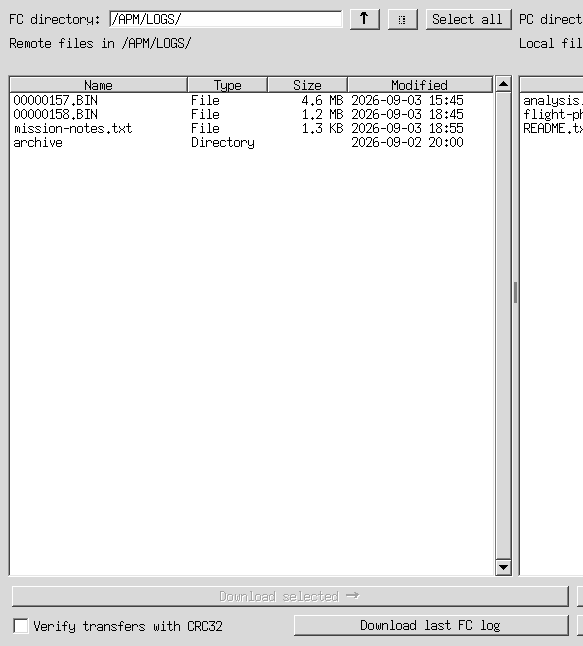
Change directory
- Type an absolute MAVFTP path in FC directory and press Enter, or click ⟳ to refresh the displayed path.
- Double-click a directory to open it.
- Click ↑, or press Backspace while a panel is active, to go to that panel’s parent directory.
- Use Browse on the PC side to choose a local folder.
- Press ← to focus the FC panel, or → to focus the PC panel. If the destination panel has no selected entry, the first usable entry is selected automatically.
The file browser accepts remote locations outside /APM/LOGS/. Take care when
working outside the log directory because those locations can contain
configuration or other non-log files.
Sort the table
Click a column heading to sort by that column. Click the same heading again to reverse the order.
- Name sorting is case-insensitive.
- Type places directories and files into separate groups.
- Size uses the actual byte count, not the displayed abbreviated value.
- Modified uses the underlying modification timestamp.
Create, rename, and delete entries
Create a directory
Right-click either panel and choose New directory. Enter one directory name in the dialog and confirm it.
The new directory is created in the directory currently shown by that panel.
After a successful refresh, it is selected automatically. Names must be a
single directory name: do not include / or \, and do not use . or ..
as the name.
Rename an entry
Select exactly one file or directory and press F2. Edit the inline name field and press Enter. If inline editing is unavailable, the browser opens a name dialog instead.
Rename only changes the final name component; it does not move the entry to a different directory.
Delete entries
Select one or more entries and press Delete, then confirm the deletion.
Deletion is deliberately non-recursive:
- files can be deleted;
- directories can be deleted only when empty; and
- a non-empty directory is reported as failed while the browser continues with the other selected entries.
Copy files and directories
Download from the flight controller
- In the FC panel, select files and/or directories.
- In the PC panel, browse to the destination folder.
- Click Download selected →.
- Confirm overwriting existing local entries if prompted.
Directories are copied recursively. The destination retains the selected directory’s name and hierarchy.
Upload to the flight controller
- In the PC panel, select files and/or directories.
- In the FC panel, browse to the destination directory.
- Click ← Upload selected.
- Confirm the upload.
Directories are uploaded recursively. Required remote directories are created before their files are uploaded. Local symbolic links are skipped.
Optional checksum verification and retry
Select Verify transfers with CRC32 before starting a download or upload to
compare each completed local file with the file on the flight controller.
The summary distinguishes Verified, Not verified, and transfer failures.
Generated @SYS files can change while being read and are reported as
Not verified rather than being checked. A failed checksum check is reported
as Not verified; it does not delete the transferred file.
After a batch with failed file transfers, the summary offers to retry only those files once. Files already transferred successfully are not transferred again. Failed directory listings and non-transfer operations are not retried.
Transfer progress
The browser shows a progress window for remote transfers. The browser cannot be closed while a remote operation is in progress; wait for it to finish.
Download and upload progress include the transferred size, average rate in KiB/s (1 KiB = 1024 bytes), and estimated remaining transfer time. For multiple files or directories, these values cover the whole transfer attempt. Failed files do not add their untransferred bytes to the rate. A retry starts a new estimate for only the files being retried.
The popup shows Estimating… initially. Rate and time estimates continue to refresh when a transfer pauses or stalls. If a file’s size is unknown, it shows the rate without a remaining-time estimate until the size is resolved. When CRC32 verification is selected, all files are transferred first, then the popup shows Verifying downloaded files… or Verifying uploaded files… until the checksum checks finish. The transfer estimate excludes this verification phase. Upload rates count bytes acknowledged by the flight controller.
When an operation finishes, the browser reports successful and failed entries. One failed file does not stop the remaining selected entries from being processed.
Modification dates
The Modified column displays the modification time for both files and directories when it is available.
- PC entries use the local filesystem’s modification time.
- Flight-controller entries use MAVFTP timestamp metadata available in newer ArduPilot firmware.
- On older firmware that does not provide MAVFTP timestamps, the remote value is shown as Unsupported rather than an invented or unreliable date.
Keyboard shortcuts
| Shortcut | Action |
|---|---|
Ctrl+A / Cmd+A |
Select all normal entries in the focused panel |
Backspace |
Open the parent directory of the active panel |
Delete |
Delete selected entries after confirmation |
F2 |
Rename one selected entry |
F5 |
Refresh the focused panel |
← |
Focus the FC panel; select its first entry if needed |
→ |
Focus the PC panel; select its first entry if needed |
| Double-click directory | Open the directory |
| Double-click a PC file | Open it with the default application |
| Right-click panel | Open the panel context menu |
When the PC panel has exactly one local file selected, choose Open from the right-click menu to launch it with the operating system’s default application. Directories and multiple selections cannot be opened this way.
On macOS, Ctrl + left-click also opens the panel context menu.
Troubleshooting
The Modified column says Unsupported
This means the connected firmware did not provide MAVFTP modification-date metadata. Upgrade to a firmware version that supports it if those timestamps are required.
A directory cannot be deleted
Only empty directories can be removed. Download or delete its contents first, then delete the empty directory.
A transfer fails
Check that the flight controller is still connected, MAVFTP is supported, and the selected remote path exists. For large logs, retry over USB or reduce other traffic on the MAVLink connection.
Upload or download buttons are disabled
Select at least one normal file or directory in the corresponding source panel.